
Zoom Integration
Matter Point — operated by Teknas Solutions Pty Ltd (ABN 64 654 175 952)
Last updated: 29 September 2026
Overview
The Matter Point Zoom integration creates a Zoom meeting automatically whenever you book a Video appointment. The join link is added to the client's confirmation email and to the calendar event, and the meeting is kept up to date when the appointment is rescheduled, renamed, or cancelled.
- Each team member connects their own Zoom account.
- Meetings are scheduled on the host's Zoom account: the person the appointment is assigned to, or the person who booked it.
- Works alongside Google Calendar or Microsoft 365, or on its own.
Requirements
- A Matter Point user account (your firm must have an active Matter Point subscription).
- The "Calendar settings" permission in Matter Point (on by default for every role).
- A Zoom account (Basic, Pro, Business, or higher). Zoom's own plan limits apply; for example, meetings hosted on Basic (free) accounts are limited to 40 minutes.
Adding the app
- Sign in to Matter Point at app.matterpoint.com.au.
- Go to Settings > Calendar (or open app.matterpoint.com.au/settings/calendar).
- In the Your Zoom account section, click Connect Zoom.
- Sign in to Zoom if asked, review the permissions, and click Allow.
- You are returned to Matter Point and see "Zoom connected successfully." The section now shows Connected with your Zoom email address.
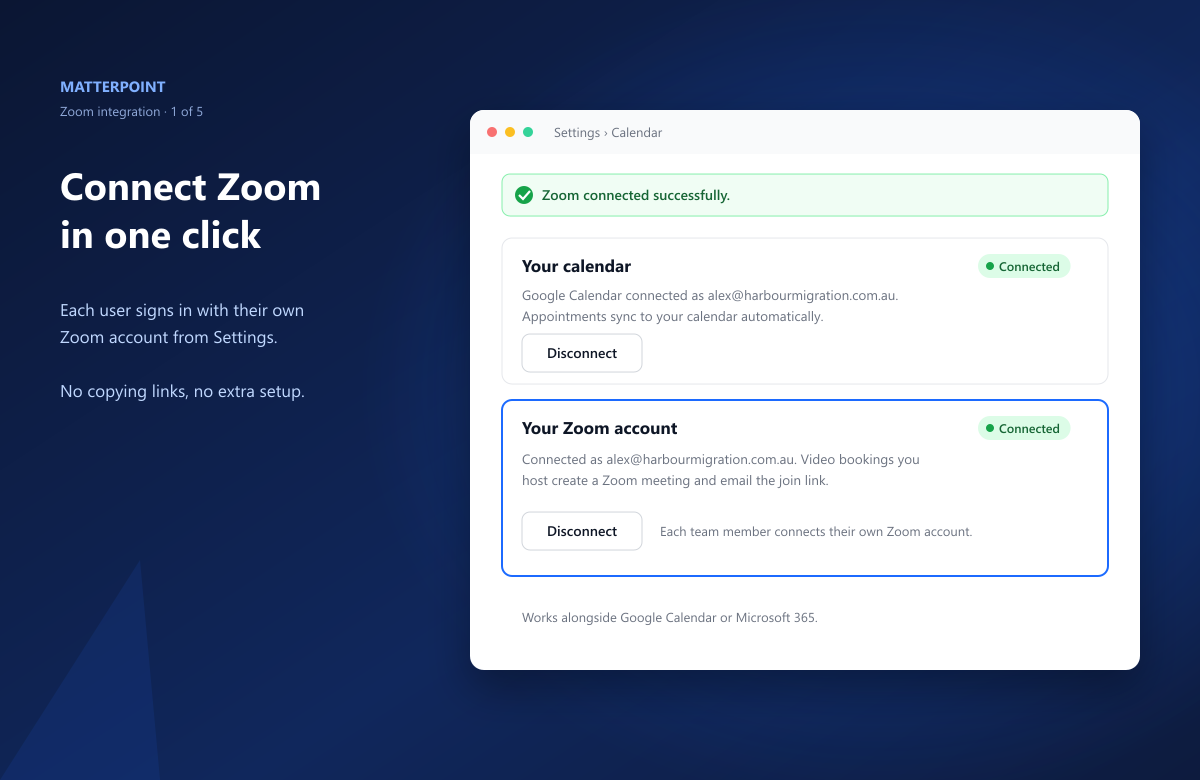
If you started from the Zoom App Marketplace, clicking Visit Site to Add takes you to step 2. Sign in first if prompted.
Using the app
Book a Video appointment
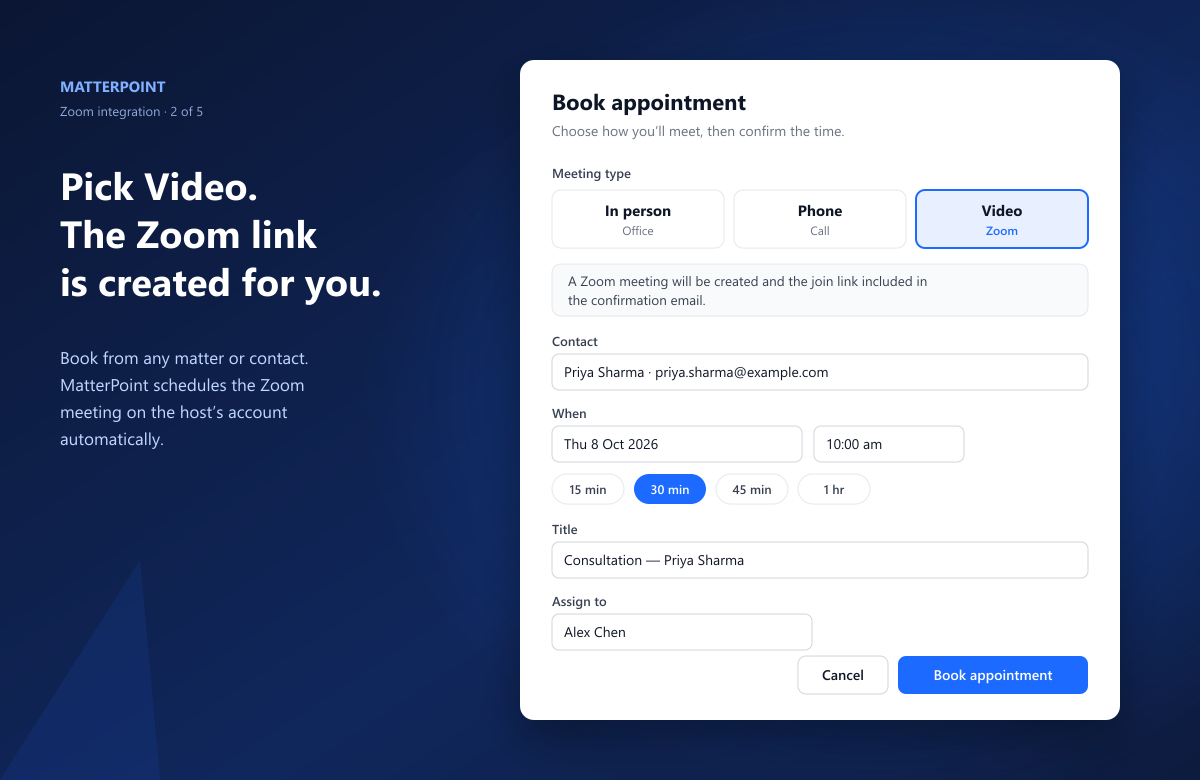
- From a matter or contact, click Book appointment.
- Under Meeting type, choose Video. When Zoom is connected for the host, the option shows Zoom and the dialog confirms: "A Zoom meeting will be created and the join link included in the confirmation email."
- Choose the contact, date, time, and duration, then click Book appointment.
What happens next
- A scheduled Zoom meeting is created on the host's Zoom account.
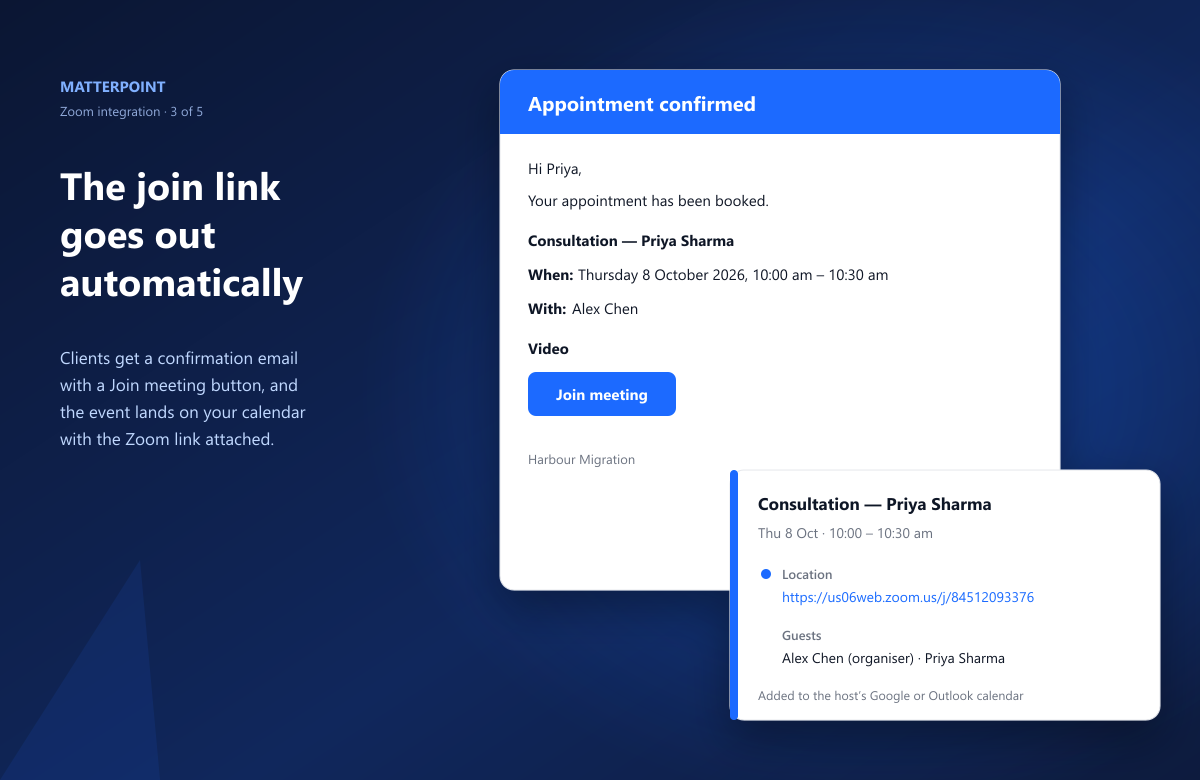
- The client receives a confirmation email with a Join meeting button.
- If Google Calendar or Microsoft 365 is connected, the calendar event includes the Zoom join link as its location and in its description.
- The join link is also shown on the appointment in Matter Point.
Changing or cancelling
- Rescheduling, renaming, or changing instructions updates the Zoom meeting.
- Changing the meeting type away from Video, or cancelling or deleting the appointment, deletes the Zoom meeting.
- Moving or cancelling the event directly in Google Calendar or Outlook is synced back to Matter Point and applied to the Zoom meeting.
Removing the app
You can remove the integration in either of these ways:
From Matter Point
- Go to Settings > Calendar.
- In Your Zoom account, click Disconnect and confirm.
From Zoom
- Sign in to the Zoom App Marketplace.
- Click Manage > Added Apps, find Matter Point, and click Remove.
Either way, Matter Point's access is revoked and your stored Zoom tokens are deleted immediately. Zoom meetings that were already scheduled stay in your Zoom account and their links keep working until you delete them. New Video bookings use a Google Meet or Teams link if a calendar is connected, or say the join link will be provided separately.
Data and permissions
Matter Point requests only these Zoom permissions:
- View your user information (user:read:user) — to show which Zoom account is connected.
- Create meetings (meeting:write:meeting) — to schedule a meeting for each Video appointment.
- Update meetings (meeting:update:meeting) — to apply time and title changes.
- Delete meetings (meeting:delete:meeting) — to remove meetings for cancelled appointments.
We store your Zoom user ID, account email, encrypted OAuth tokens, and the meeting ID and join link for each Video appointment. We never access meeting audio, video, chat, recordings, transcripts, or participant information. See our Privacy Policy for full details.
Troubleshooting
- Video shows Google Meet or Teams instead of Zoom: the host of the appointment has not connected Zoom. Ask the assignee to connect their Zoom account, or assign the appointment to someone who has.
- "Zoom meeting could not be created. Reconnect Zoom…": your Zoom authorisation has expired or was removed. Go to Settings > Calendar, click Disconnect if shown, then Connect Zoom again.
- "Zoom connection failed" after approving: start the connection again from Settings > Calendar while signed in to Matter Point, and complete it within 15 minutes.
- Meeting ends after 40 minutes: the host has a Zoom Basic (free) plan. Upgrade the host's Zoom plan to remove the limit.
Support
Email info@matterpoint.com.au with your firm name and a description of the issue, and we'll get back to you as soon as possible.